
A fresh new look, and a lot of new features
PageProofer started with a simple idea: sticky notes for websites. It’s been a while since the outside matched how good that idea feels to use, so we gave it a fresh coat of paint. While we were at it, we shipped a stack of features that make leaving, finding and fixing feedback faster than ever.
Here’s everything that’s new.
A fresh new look
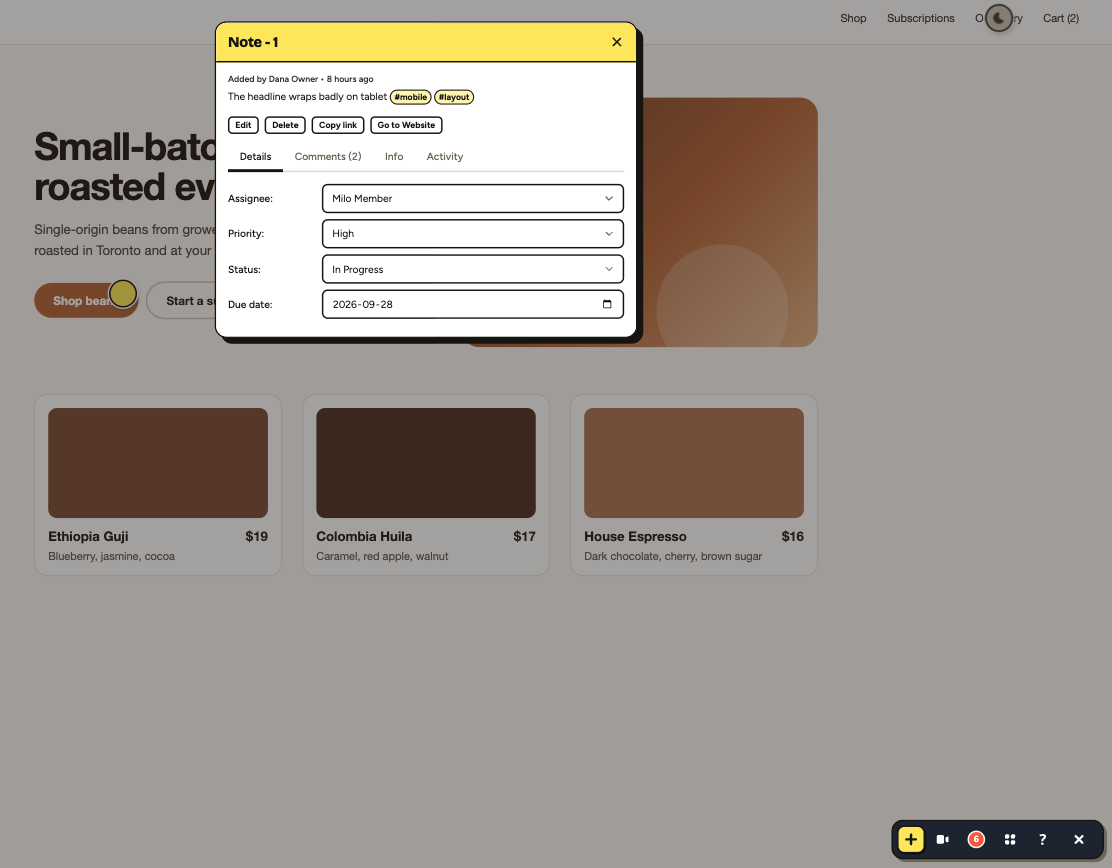
You’ve probably noticed already. PageProofer has a bolder, brighter look, inspired by the sticky notes that started it all: sticky-note yellow, chunky black outlines and big, friendly type. You’ll see it here on the website and inside PageProofer, from the notes on your website to the dashboard.
It’s not just a new coat of paint. Notes are easier to read at a glance, buttons are easier to hit, and the important things, like who a note is assigned to and when it’s due, stand out.
Connect your AI coding agent
This is the big one. AI coding agents like Claude Code and Cursor can now connect to PageProofer, read your notes, fix the issues in your code, and report back on the note.
Ask your agent something like “fix the open #checkout notes on the Northwind site” and it can:
- find the right notes, filtered by status, tag, page, assignee or due date
- read each note in full, including the element it was pinned to, the reporter’s browser and window size, any console errors, and the screenshots
- find the code behind the issue, fix it and commit the change
- comment on the note with what it changed and the commit hash, then move it to Review for a person to check
Agents can’t close notes on their own, so a person always gets the final say. Every change an agent makes is marked “via AI agent” in the note’s activity, so you always know who did what.
AI agent access is included on every plan, and you can try it during your free trial. Read Connect an AI agent to get set up, then How to use the AI agent for tips and example prompts.
Start leaving feedback without adding any code
Until now, the first step with PageProofer was getting the embed code onto your website. That’s easy when you own the site, but it can mean waiting on a developer, a client’s IT team or a deploy before anyone can leave a single note.
Not any more. The new PageProofer extension for Chrome and Edge puts PageProofer on any of your sites with one click, no code required.
- Install it from the Chrome Web Store. It works in Edge too.
- Click the PageProofer button in your toolbar on any of your sites. PageProofer loads right on the page with everything you’re used to: notes, screenshots, recordings, #tags and @mentions.
- There’s nothing extra to sign into. The extension uses your normal PageProofer sign-in.
Add a site in one click
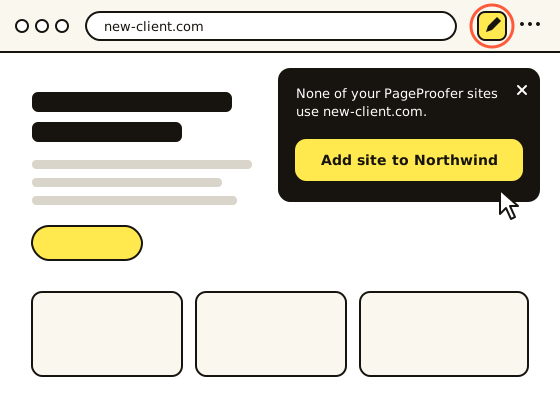
This is the part admins will love. Open a website that isn’t in PageProofer yet, click the extension, and PageProofer offers to add it to your account. One click and the site is created with its domain filled in, and PageProofer loads on the page ready for your first note. No forms, no settings, no code. See Add a site with the browser extension.
The extension is for you and your team. Your clients still don’t need to install anything: when you’re ready for their feedback, add the embed code and they can leave notes from any browser on any device. Start with the extension today and add the code whenever it suits you.
See exactly what you’re pinning
Pinning a note to the right spot just got easier. As you move your cursor around the page, PageProofer now outlines the element underneath it and labels it, so you can see exactly where your note will go before you click.
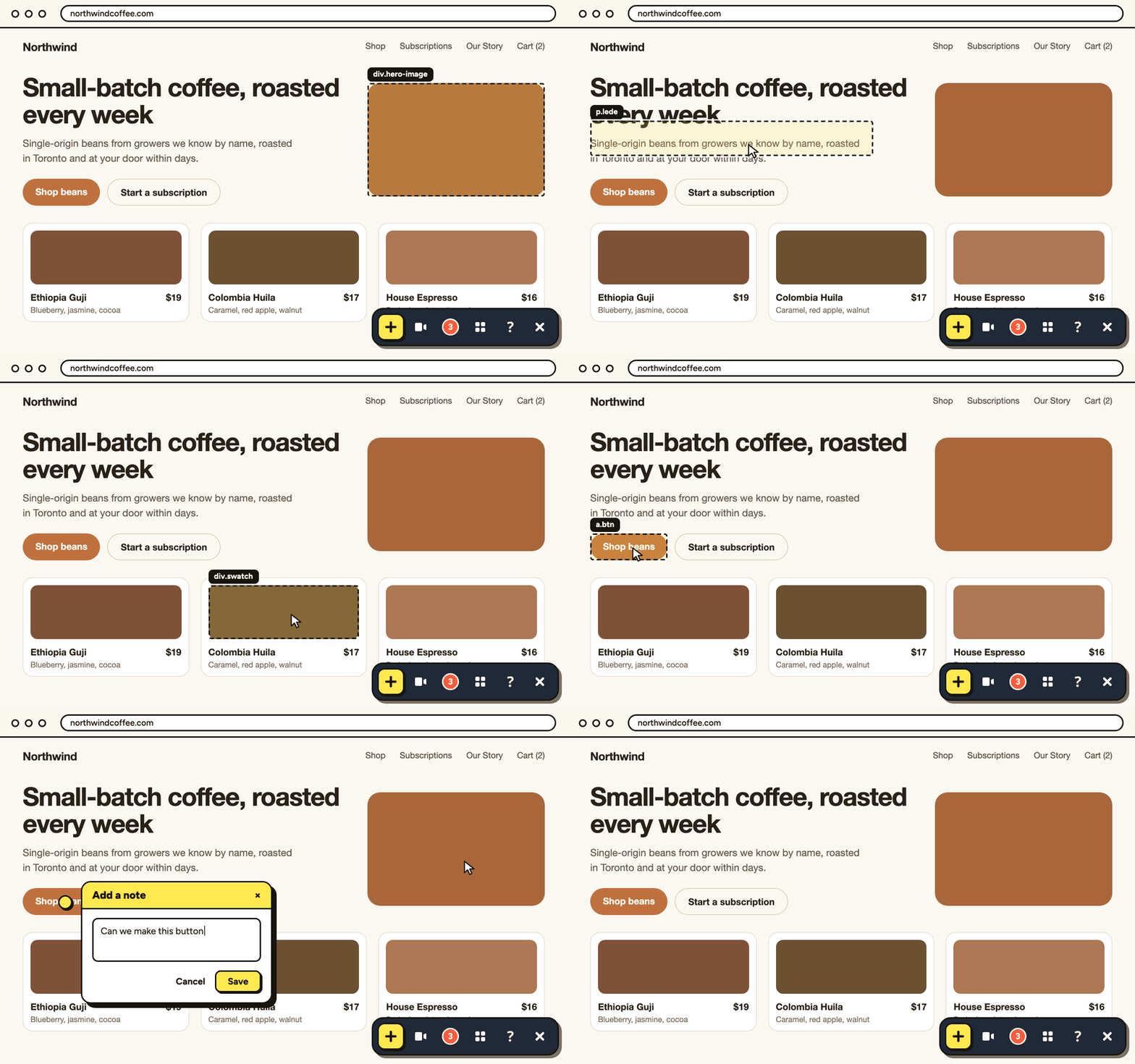
Developers get a precise element to work from, and nobody has to guess which “button on the left” you meant. See What is the outline that follows my cursor?.
Find the right notes, fast
As projects grow, so does the feedback. We’ve made it much easier to cut through it.
- All notes on the website. The notes list on your website can now switch between the notes on the current page and every open note on the site. Click a note from another page and PageProofer takes you straight there. See See all notes on your site.
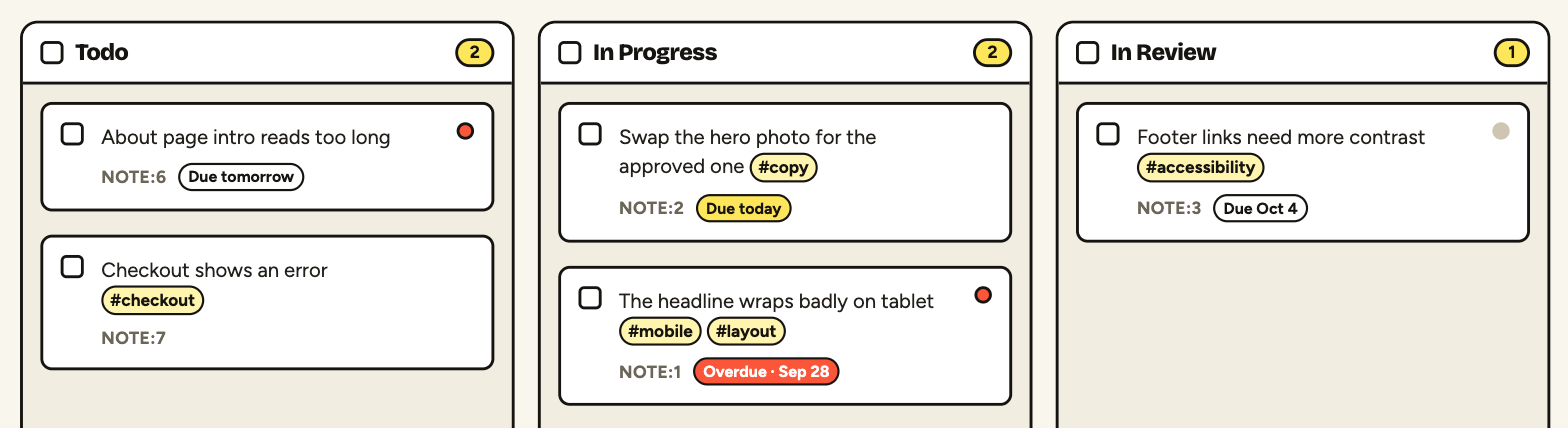
- Due dates. Give a note a due date and it shows up on the dashboard as due soon, due today or overdue. The person it’s assigned to gets a reminder email when it’s overdue. See Due dates.
- New dashboard filters. Filter by Due (overdue, due in the next 7 days, or no due date) and by Tags, and combine them with the filters you already use. “Overdue notes assigned to me” is now two clicks away.
Draw while you record
Screen recordings are the best way to show a tricky problem, and now you can point things out as you talk. Click the pencil in the recording bar (or press D) and draw right on the page. Each stroke fades away a moment after you finish it, so the page stays clear as you scroll, and you can pick a colour to make things stand out.

Your drawing is part of the video, so whoever watches it sees exactly what you were pointing at. See Drawing while you record.
Keyboard shortcuts
If you leave a lot of feedback, your hands never need to leave the keyboard. With PageProofer open on your website:
Nadds a note about the whole pageRstarts a screen recording, andDdraws while it’s runningLshows or hides the notes listPP(twice, quickly) opens or closes PageProofer?shows the full list
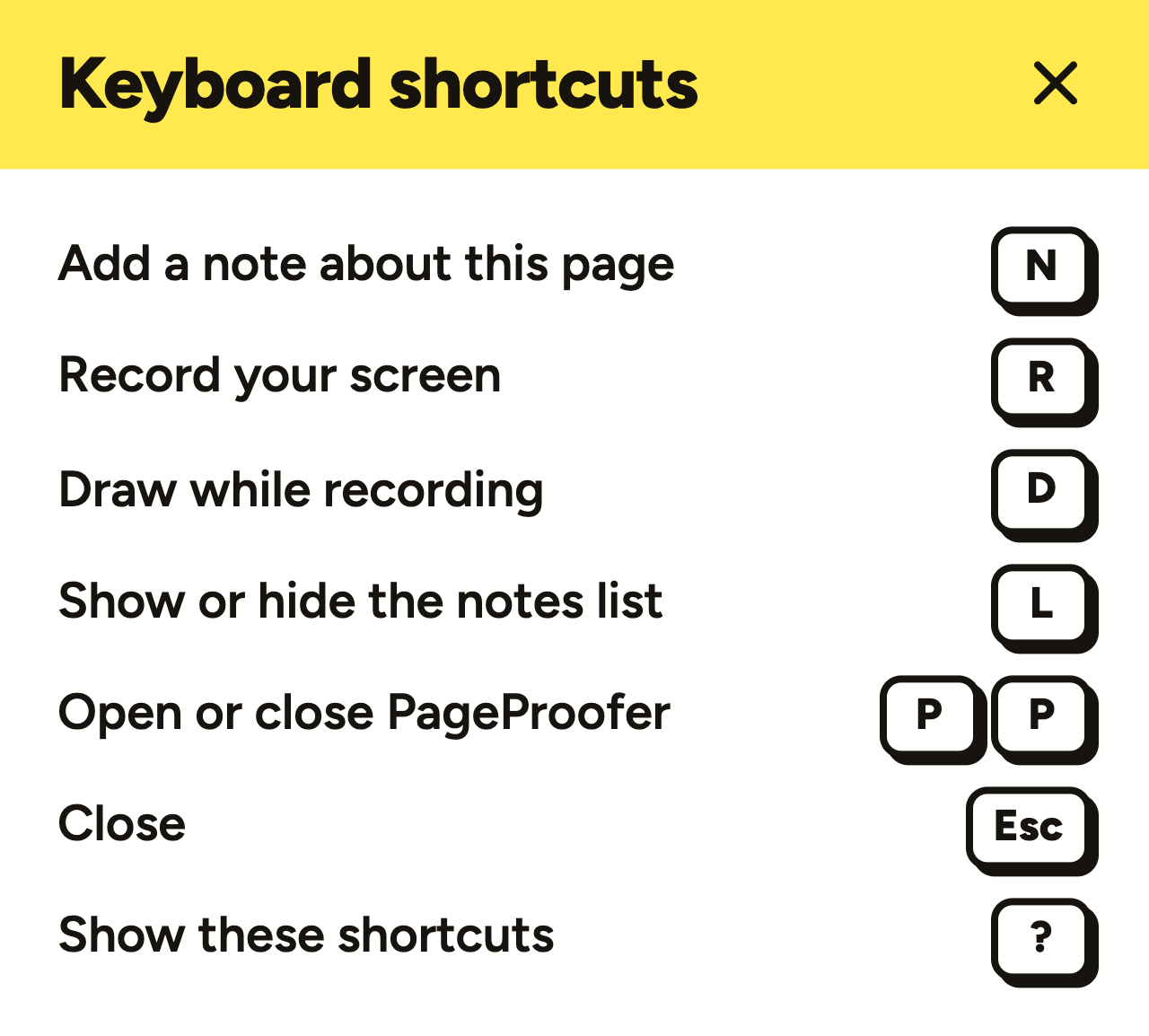
Shortcuts only work while PageProofer is open and never while you’re typing, so they won’t get in the way of your own website. See Keyboard shortcuts.
Organise feedback with #tags
Tags work just like @mentions. Type # in a note or comment and PageProofer suggests the tags already used on the site, most used first, or you can create a new one on the spot.
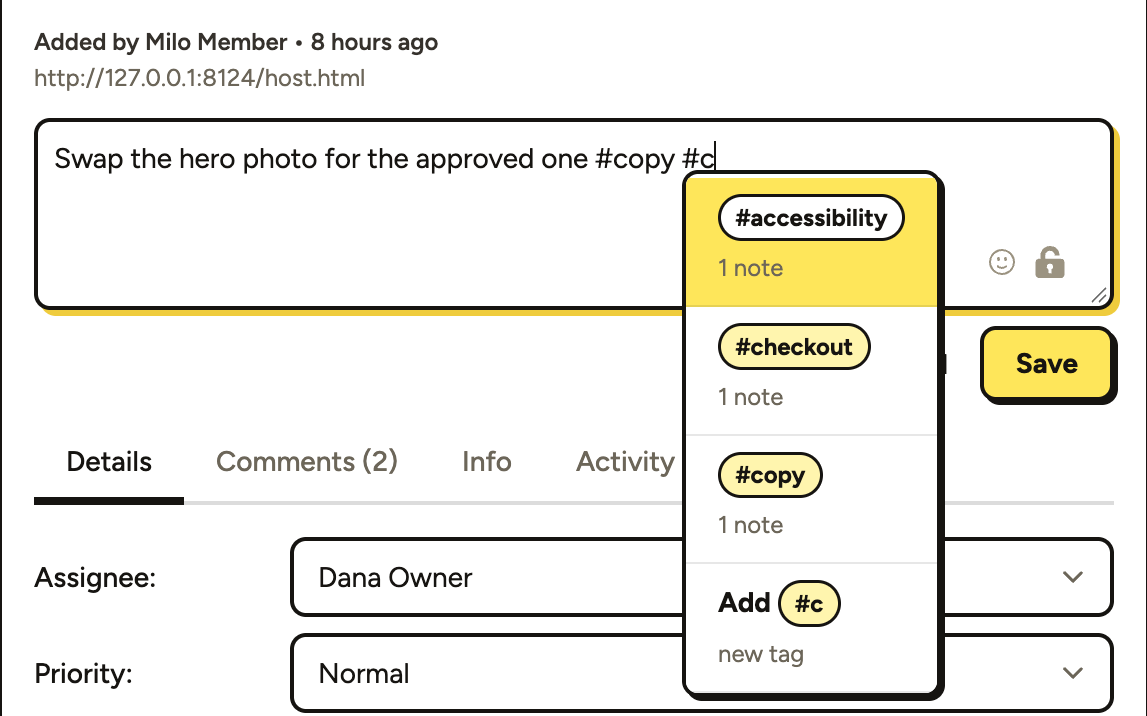
Tags show up as yellow pills on the dashboard and in the notes list on your website. Search for #mobile to see every note tagged mobile, combine tags like #mobile #checkout to narrow it down, or use the new Tags filter. They’re also a great way to hand an AI agent a batch of related notes to work through. See #Tags.
A few more things
- Console errors on every note. New notes include the page’s recent console errors and failed network requests, so developers can see what went wrong without asking. You can switch it off per site if your pages log personal data. See Console errors and page details.
- Pixel perfect screenshots. Screenshots now use your browser’s screen sharing to capture exactly what you see. See How do I add attachments and screenshots?.
Try it out
Everything above is live now. Install the extension and try PageProofer on a site without touching the code, open PageProofer and press ? to see the shortcuts, type # in your next note, or connect your AI agent and let it take a pass at your open notes.
New to PageProofer? Start a free 15 day trial, no credit card required. We’d love to hear what you think.
PageProofer makes it simple to manage visual feedback.