
Inspect an element's styles
Is that heading really 32px? Is the button the right blue? Inspect answers questions like these right on your live site. It shows the styles of any element on the page, so you can check them against the design without opening the browser’s developer tools.
How to inspect an element
- Open PageProofer on your website.
- Move your mouse over the element you want to check. PageProofer outlines it, and an Inspect button appears in the top-right corner of the outline.
- Click Inspect, or press
I.
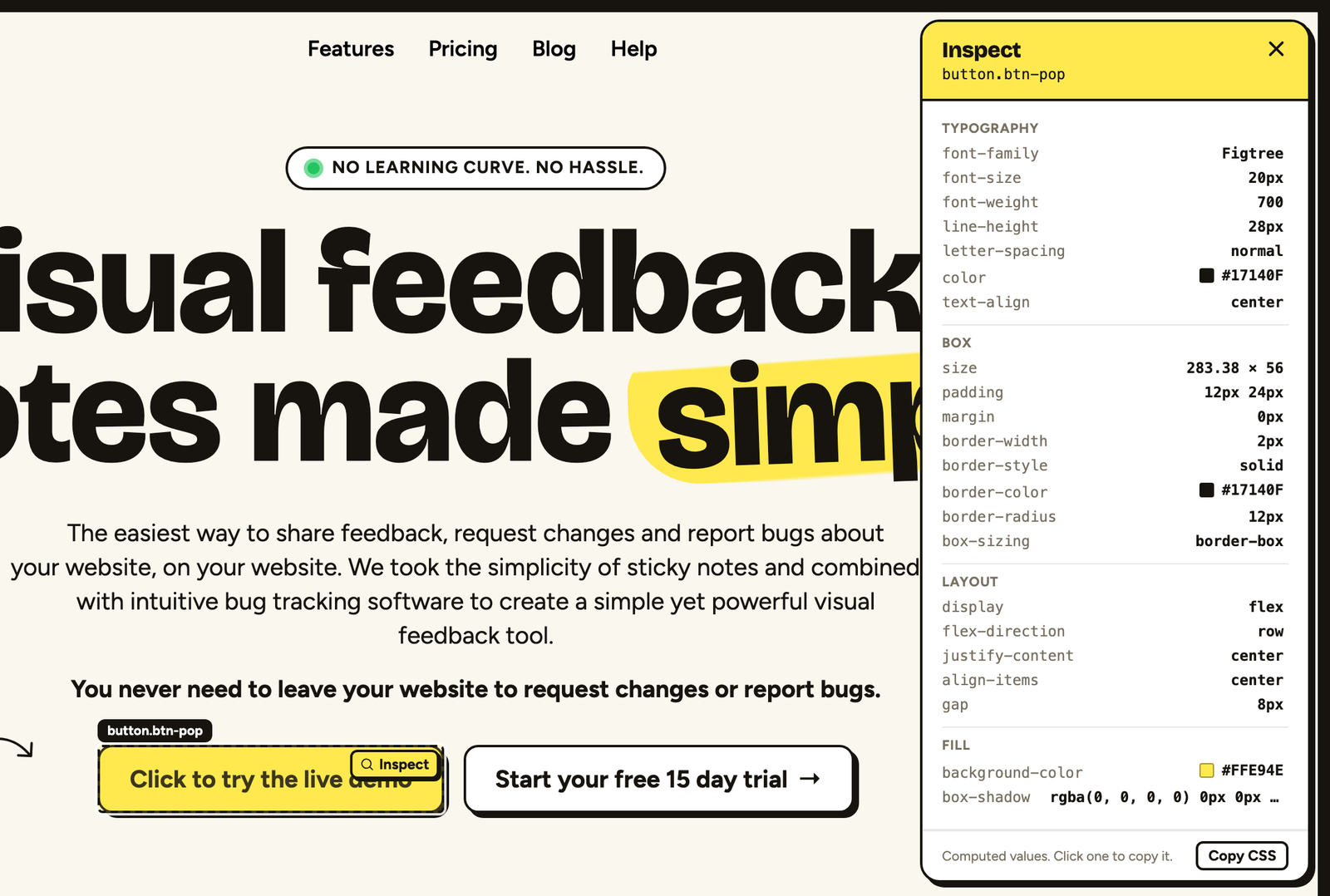
The Inspect panel opens on the side of the page away from the element, so it doesn’t cover it. The label at the top shows which element you’re looking at, like h1 or a.btn.
Press Esc or click the close button to close the panel. PageProofer stays open, so you can move on to the next element.
What the panel shows
The values are grouped the way you’d check them against a design file:
| Group | What’s in it |
|---|---|
| Typography | Font, size, weight, line height, letter spacing, text colour and alignment. Text transform shows up when it’s set. |
| Box | The element’s size on screen, padding, margin, border radius and box sizing. Border width, style and colour show up when it has a border. |
| Layout | The display type. For flex and grid layouts, also the direction, alignment and gap. |
| Fill | The background colour. Background images, opacity and shadows show up when they’re set. |
Colours are shown as hex codes with a small swatch. A see-through colour shows its opacity too, like #000000 · 40%.
When an element’s background is transparent, the panel also shows behind it: the colour the element actually sits on, and which element that colour comes from. That’s usually the colour you want to compare with the design.
These are computed values: what the browser actually draws, not what’s written in the stylesheet. Sizes set in rem or em show up in pixels, which makes them easy to compare with a design file.
Copy the values
- Click any value to copy it. It says “Copied” for a moment.
- Copy CSS at the bottom of the panel copies everything as a block of CSS, ready to paste into a note, a chat or your code. The element’s size and the “behind it” colour are left out, since they aren’t styles set on the element.
The font row shows the first font in the list. Hover over it to see the whole font stack. Copy CSS includes the full stack.
Use it with feedback
Inspect is handy when you’re reviewing a build against the design. Check the values, then click the element to pin a note to it with what needs to change, like “Font size should be 18px, not 16px.” Pasting the copied CSS into the note shows the developer exactly what you saw.
Good to know
- Inspect only reads the page. It doesn’t change your website, and nobody else sees the panel.
- Phones and tablets don’t have a cursor, so the Inspect button doesn’t show up there.
- The panel shows the most useful properties, not every CSS property. For the full list, use your browser’s developer tools.
- Find
Iand the other shortcuts in Keyboard shortcuts.