
ClickUp Integration
Connect a PageProofer site to a ClickUp List and every note added in PageProofer becomes a ClickUp task. The task has the full note, its screenshots and attachments, the reporter’s browser details and a link straight back to the note on the page.
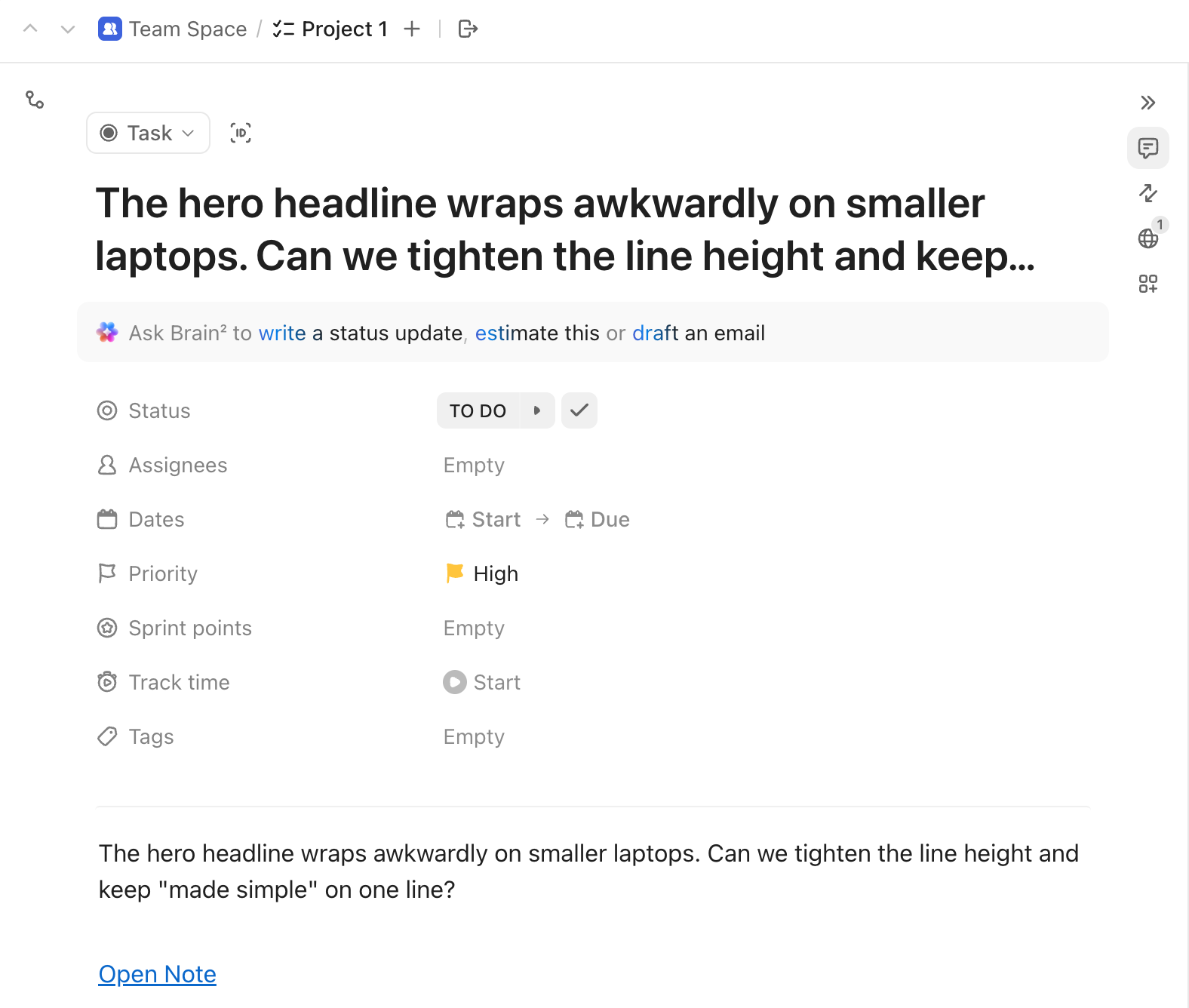
The two stay in step after that. Comments, status, priority and assignee changes made in either PageProofer or ClickUp show up in the other.
Set it up
-
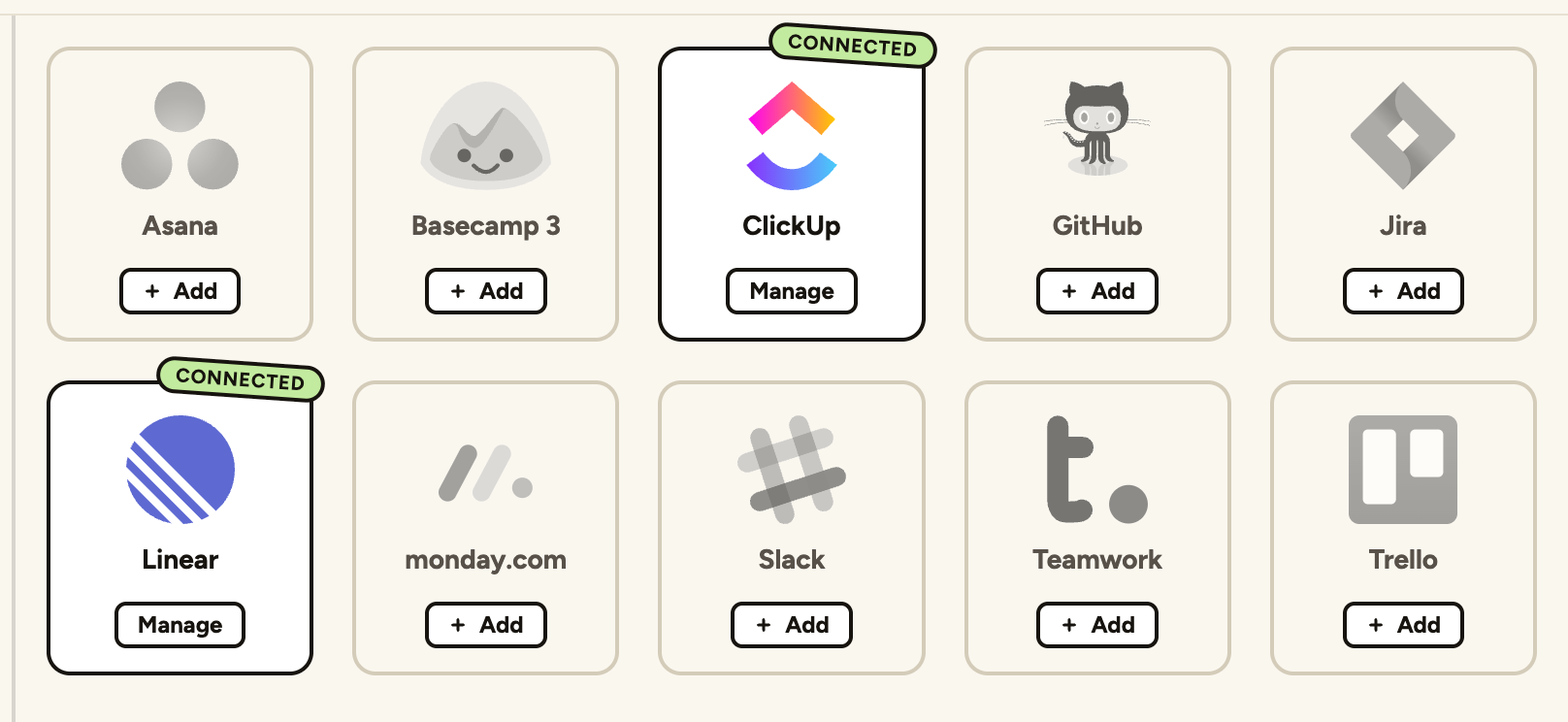
Go to the ‘Site Settings’ screen in PageProofer, click the ‘Integrations’ tab and then click ‘Add’ on ClickUp.
-
Allow PageProofer access to your ClickUp account and pick the Workspaces it can use.
-
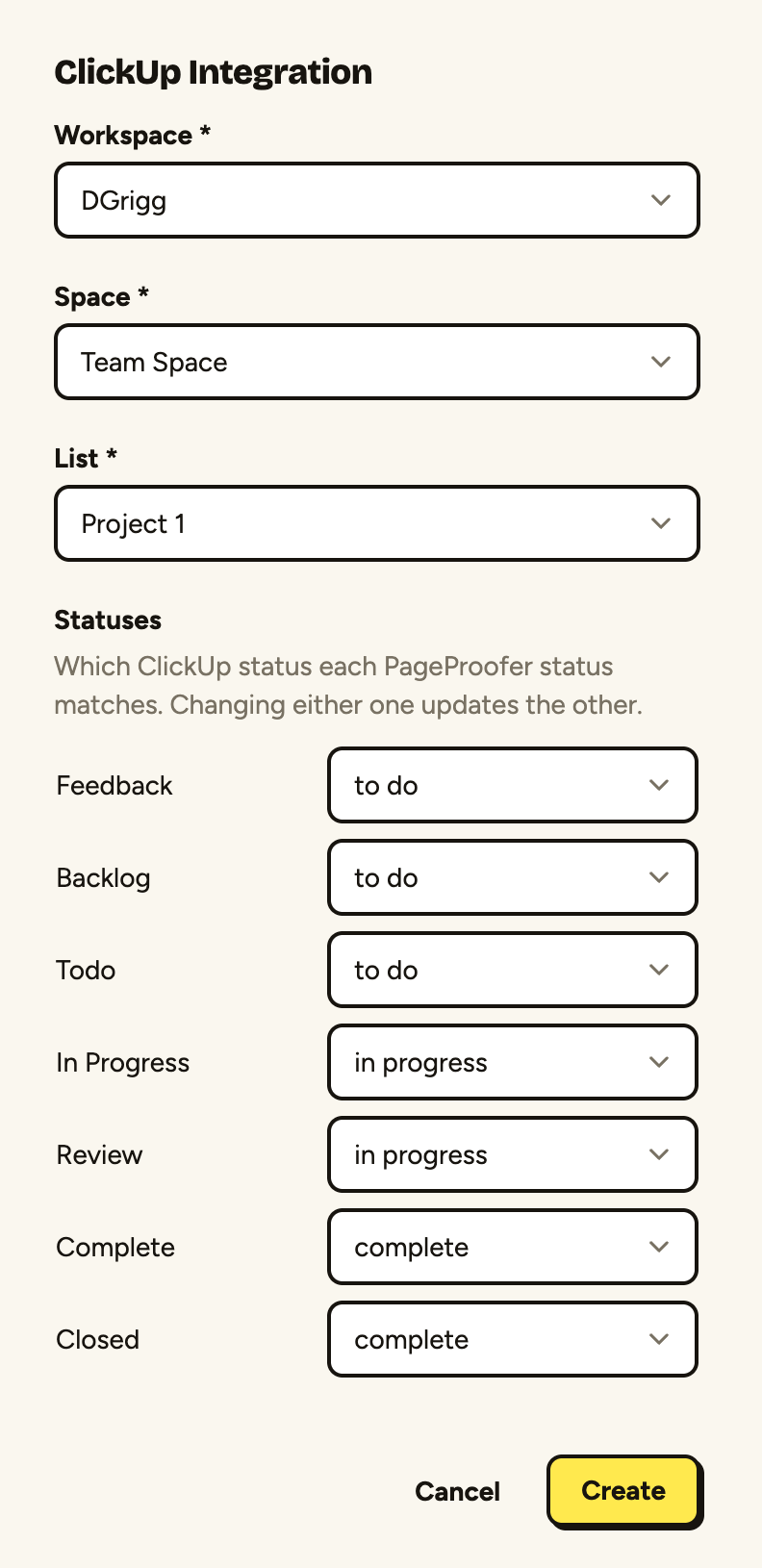
Choose the Workspace, Space and List the tasks should go in.
-
Check which ClickUp status each PageProofer status matches. PageProofer suggests a match for each one from the List’s statuses, so usually there’s nothing to change.
-
Click ‘Create’. Your site is now connected to ClickUp.
What stays in sync
- Comments added to the note or the task are copied to the other.
- Status changes follow the matches you set in step 4.
- Priority: PageProofer’s Low, Normal and High match ClickUp’s Low, Normal and High. A task marked Urgent in ClickUp becomes High in PageProofer.
- Assignee: people are matched by email address, so assigning someone in ClickUp assigns the same person in PageProofer, as long as they’re on the site.
Deleting the task in ClickUp keeps the note in PageProofer. It just isn’t linked to a task any more.
Images added to ClickUp comments aren’t copied to PageProofer, only the comment’s text.
Connect your own ClickUp account
Notes and comments are added to ClickUp using the account of whoever set up the integration. If your teammates have their own ClickUp accounts in the same Workspace, they can connect them so their notes and comments show up under their own name:
-
Click ‘My Settings’ in the PageProofer sidebar and choose the ‘Integrations’ tab.
-
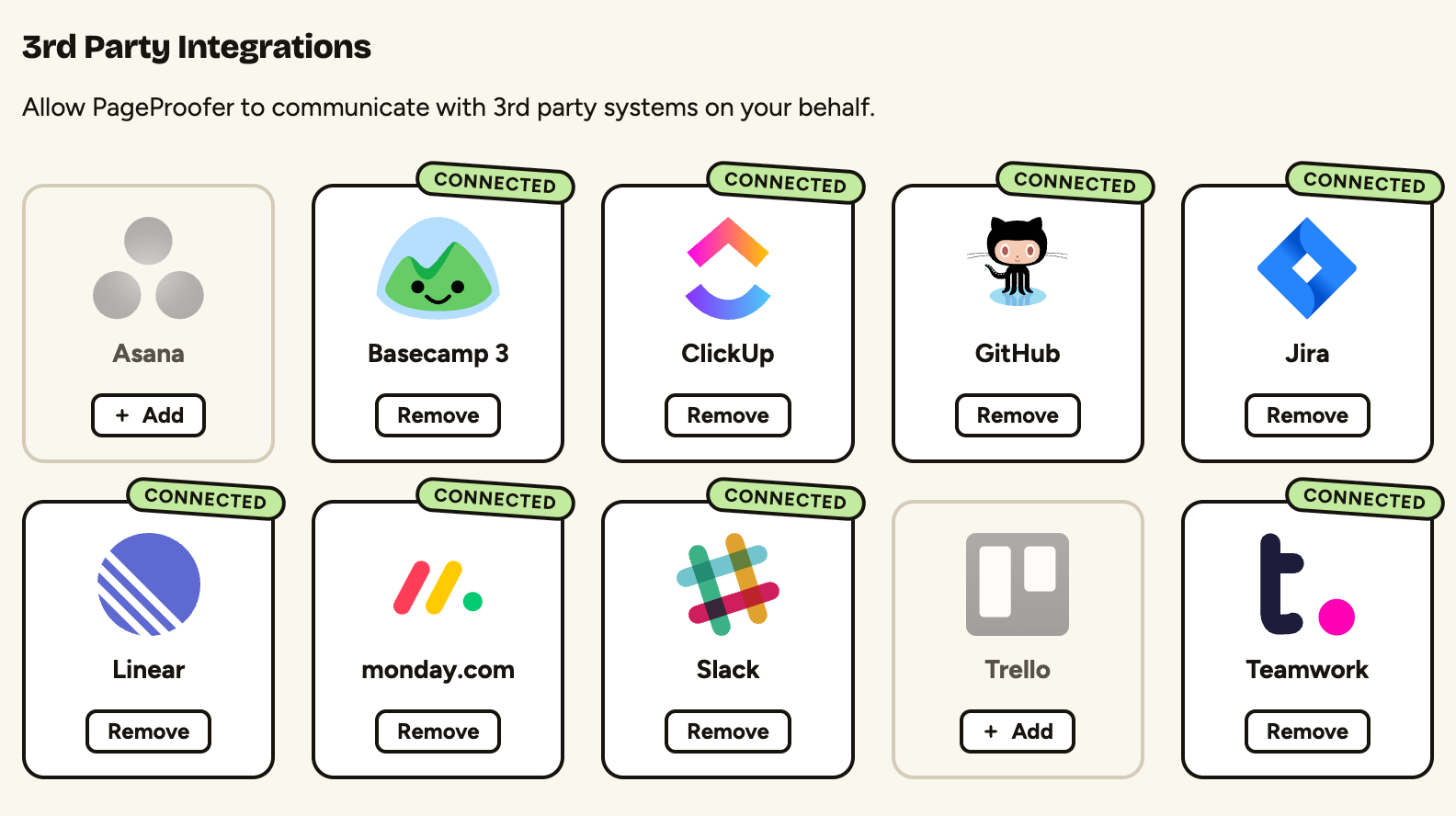
Click ‘Add’ on ClickUp and allow PageProofer access to your ClickUp account.
If changes stop coming back from ClickUp
The integration page tells you if ClickUp has stopped sending changes to PageProofer. Remove the integration and add it again to reconnect. Notes sent before are still linked to their tasks.