
Due dates
Give a note a due date so everyone knows when it needs to be done, and spot overdue work at a glance on the dashboard.
Adding a due date
Open a note, from the dashboard or on your website, and pick a date in the Due date field on the Details tab. It saves as soon as you choose it. You can also set a due date when you first add a note.
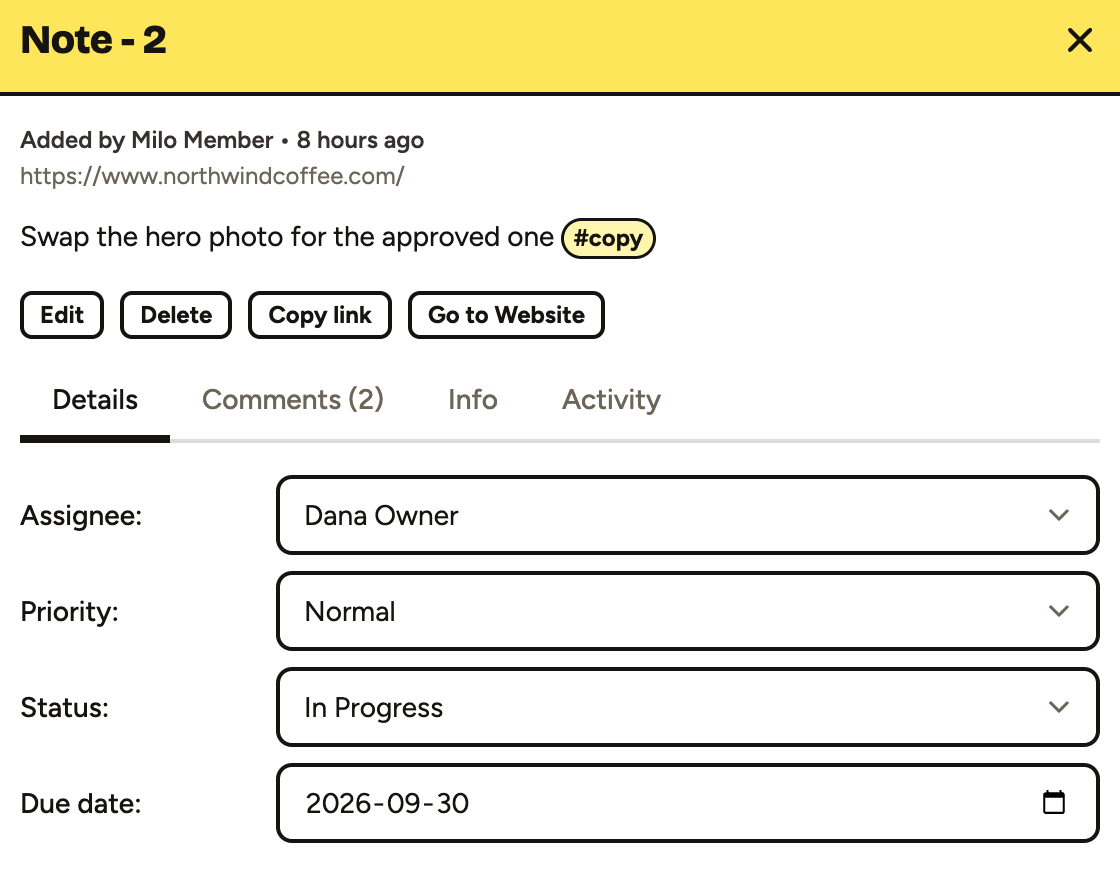
To remove a due date, clear the field.
Due dates are for tasks, so the field isn’t shown on notes that are still in Feedback or Backlog. Guests can’t set due dates.
On the dashboard
Notes with a due date show it next to the note number:
- Due Oct 14: due later on.
- Due tomorrow or a date within the next week: coming up soon.
- Due today: highlighted in yellow.
- Overdue: highlighted in red, with the date it was due.
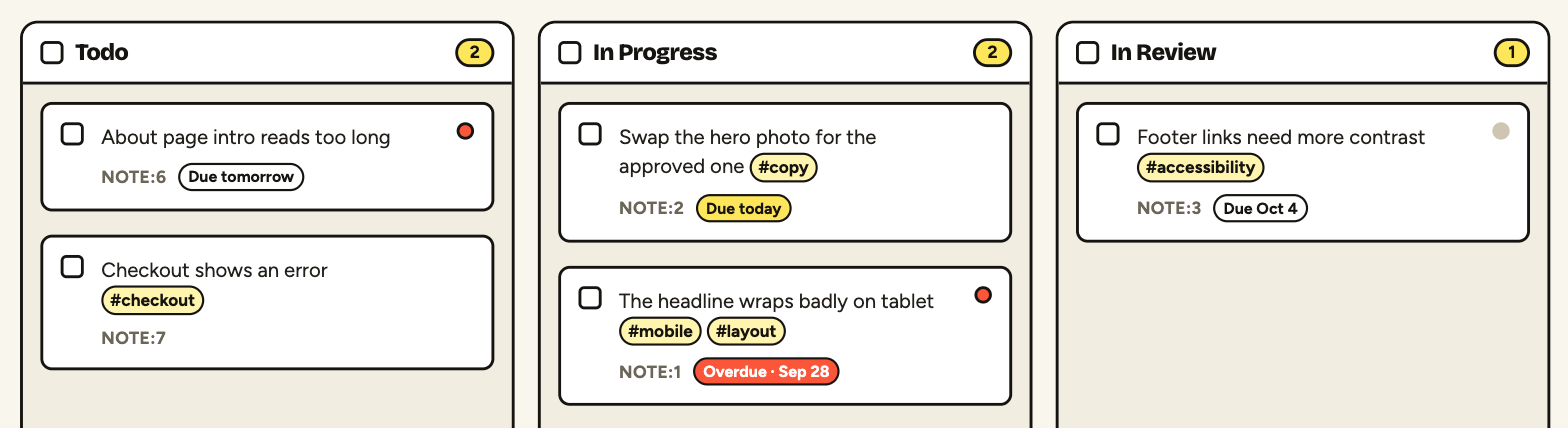
Once a note is marked Complete or Closed its due date is crossed out and it’s never shown as overdue.
Filtering by due date
Use the Due filter at the top of the dashboard to show:
- Overdue: notes past their due date.
- Due in the next 7 days: notes due today or within the next week.
- No due date: notes that don’t have one yet.
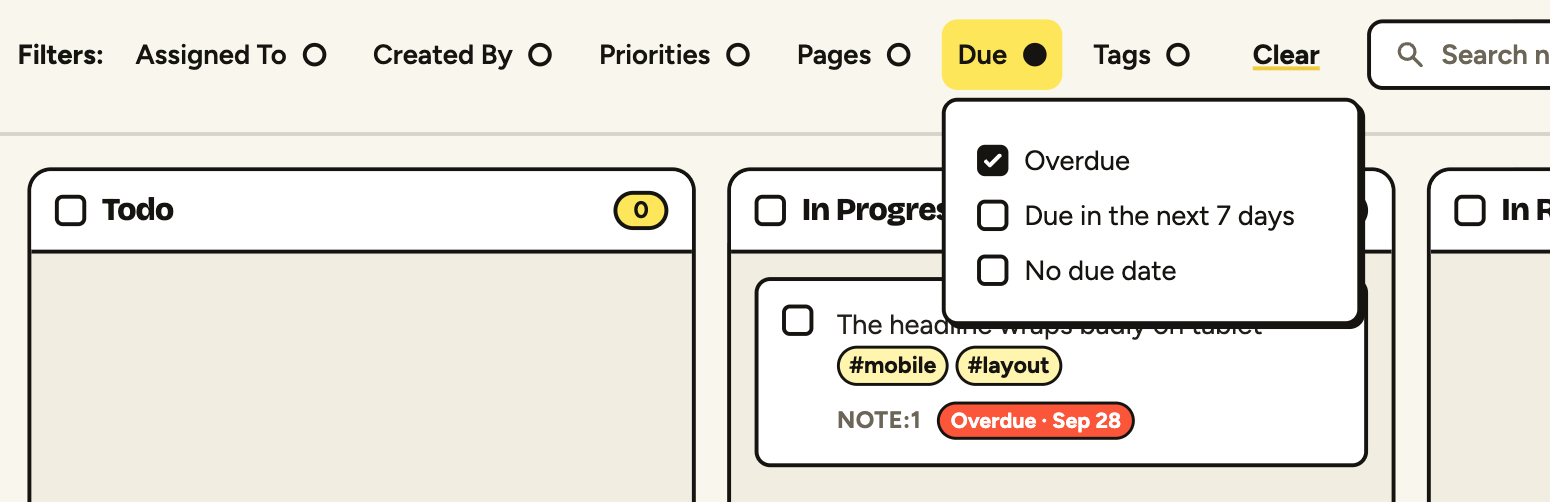
The Due filter works together with the other filters, so you can, for example, see only the overdue notes assigned to you.
Overdue reminders
Each morning PageProofer emails the person a note is assigned to when its due date has passed and the note is still open (not Complete or Closed, and not sitting in Feedback or Backlog). If several of their notes are overdue they arrive together in one email, grouped by website, with links to open each note on the site or in the dashboard.
You’re reminded once per due date. Mark the note Complete or Closed and you won’t hear about it again; give it a new due date and you’ll only be reminded if that date passes too.
History
Setting, changing or removing a due date is recorded on the note’s Activity tab, so you can see who changed it and when.