monday.com Integration
Connect a PageProofer site to a monday.com board and every note added in PageProofer becomes an item on the board. monday.com items don’t have a description, so the full note, its screenshots and attachments, the reporter’s browser details and a link straight back to the note on the page are posted as the item’s first update.
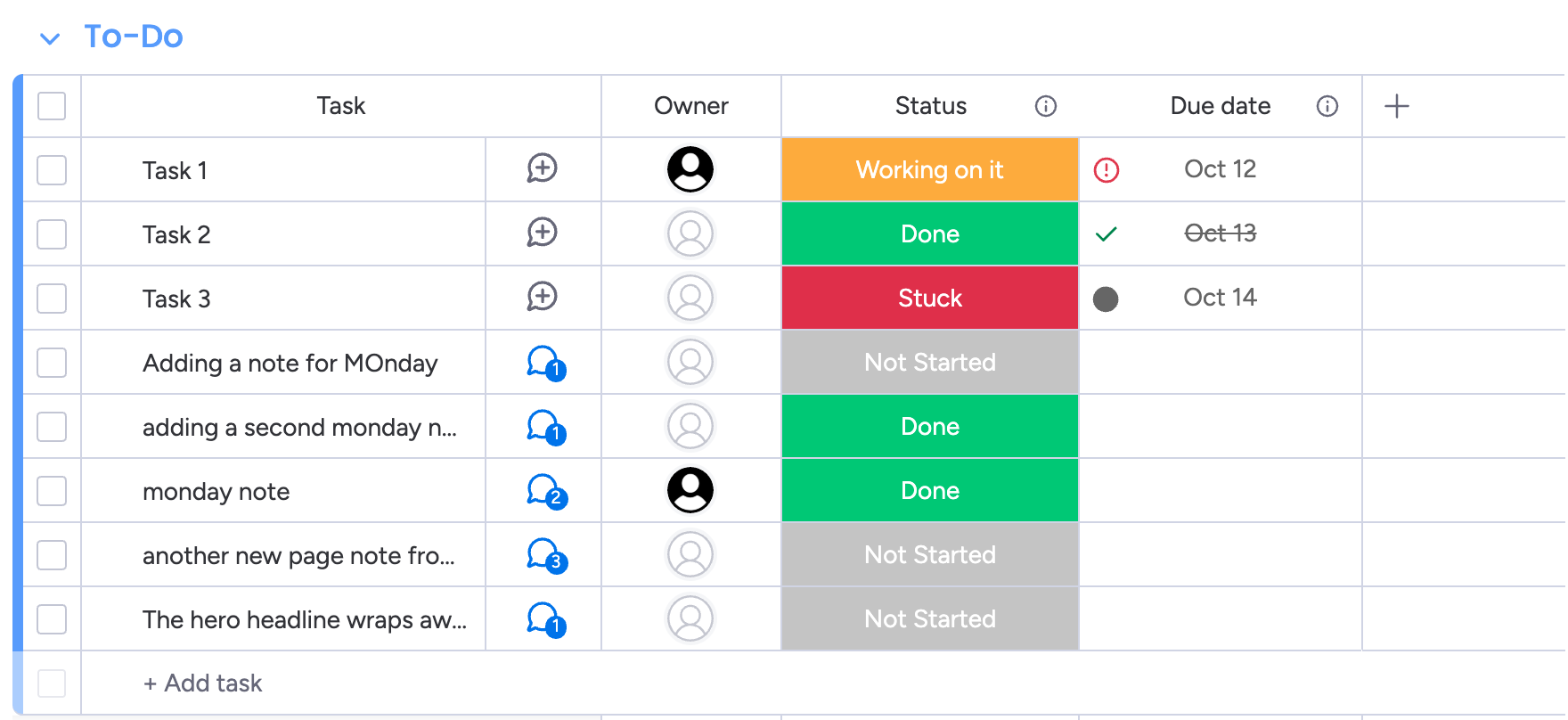
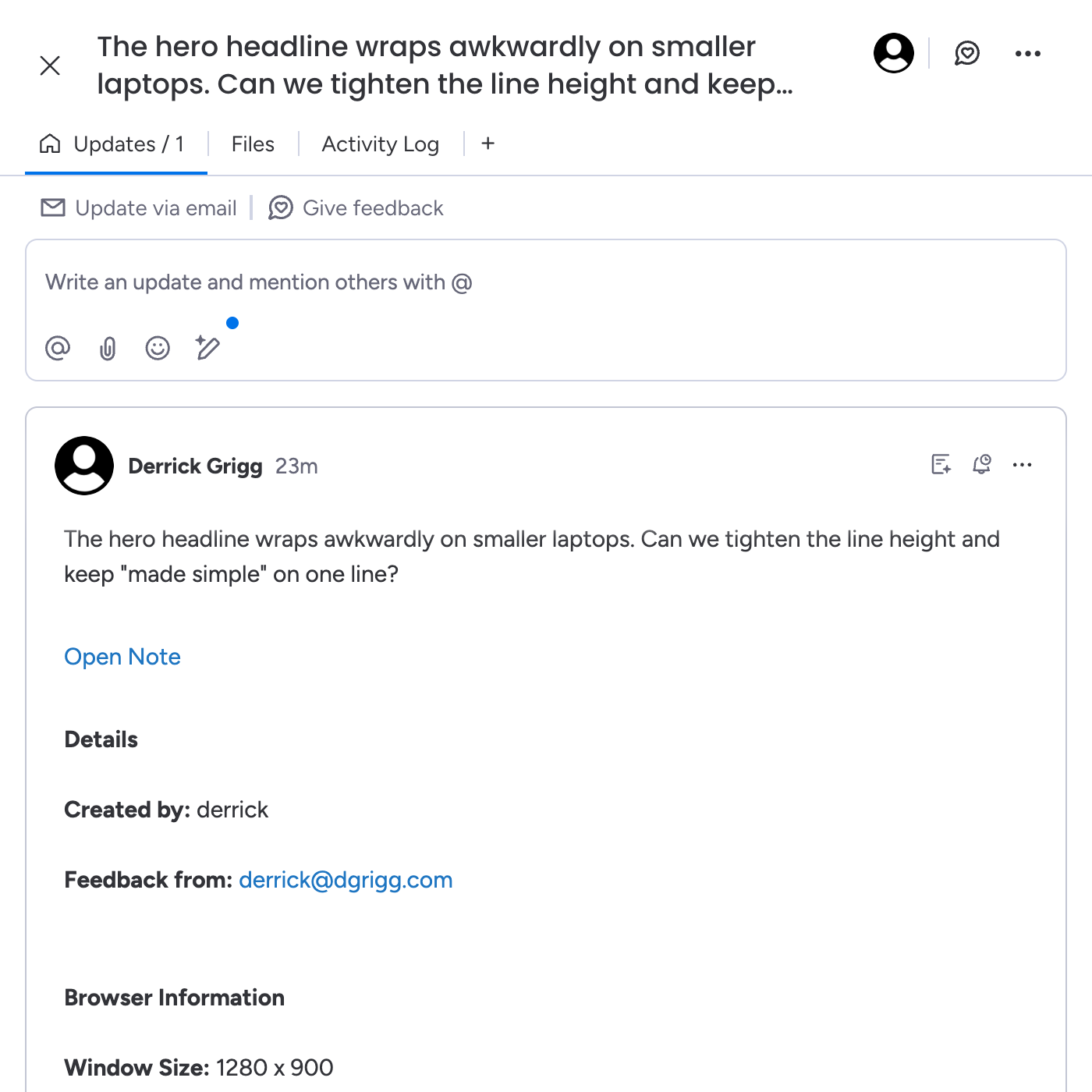
The two stay in step after that. Updates, status, priority and person changes made in either PageProofer or monday.com show up in the other.
Set it up
-
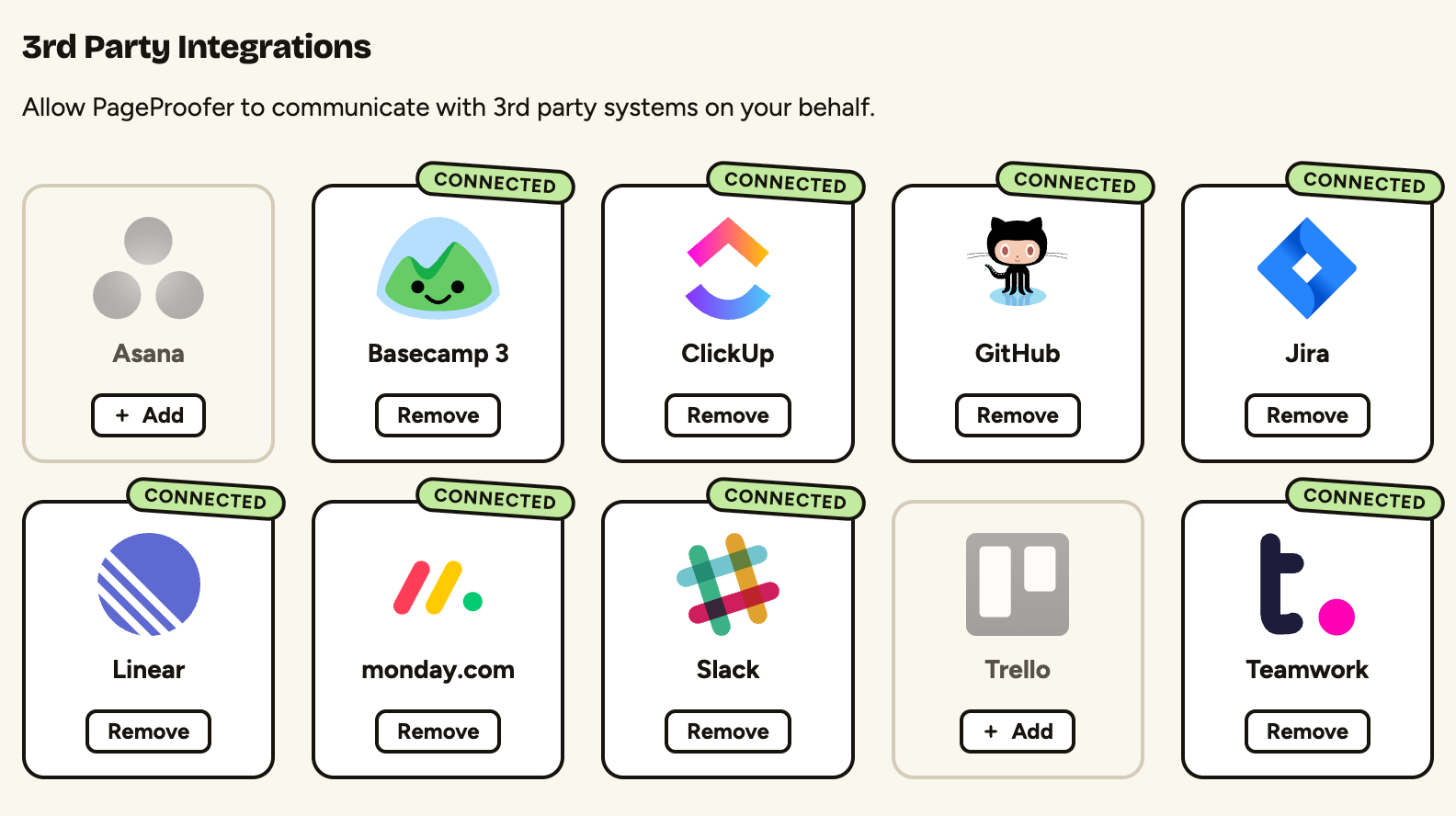
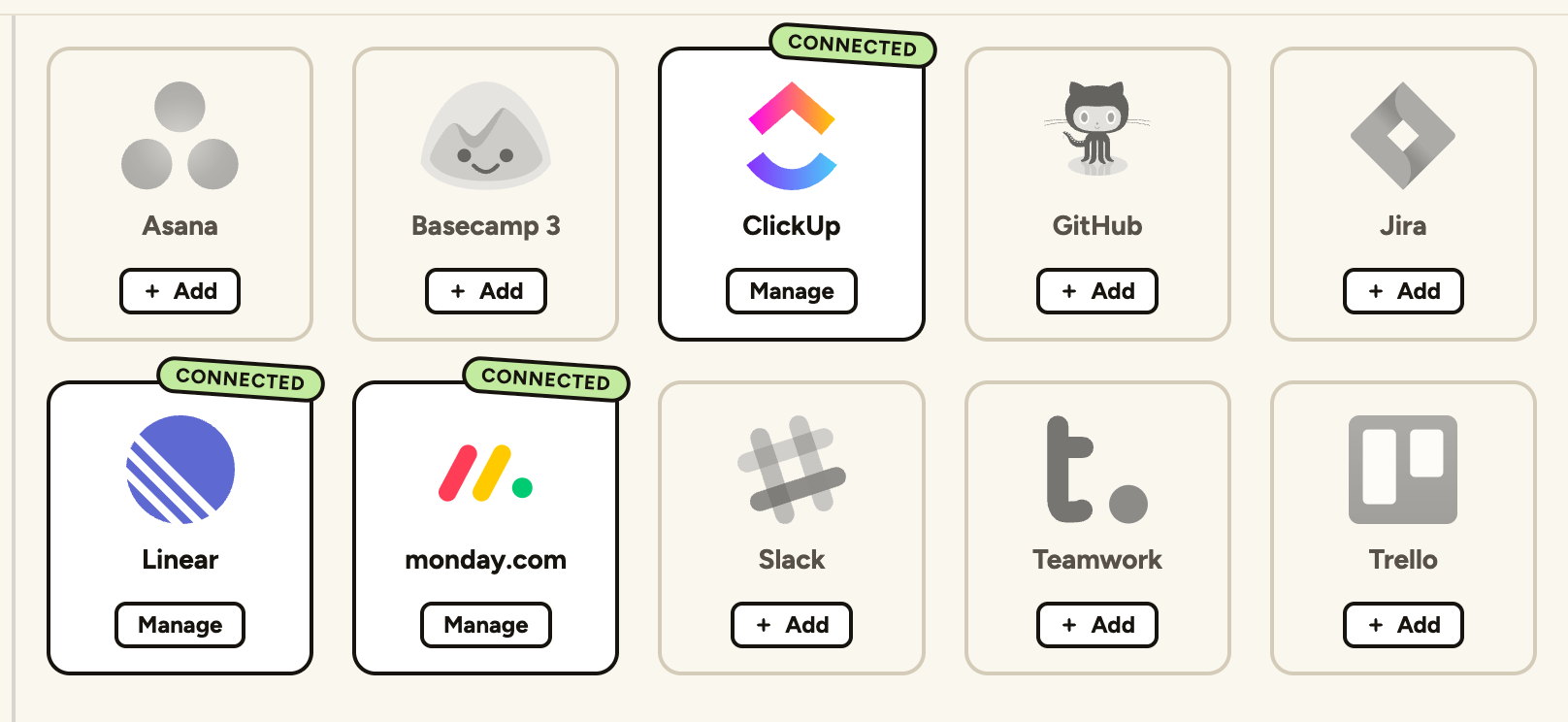
Go to the ‘Site Settings’ screen in PageProofer, click the ‘Integrations’ tab and then click ‘Add’ on monday.com.
-
Allow PageProofer access to your monday.com account. The first time anyone in your monday.com account connects, monday.com asks to install the PageProofer app. If you aren’t a monday.com admin, an admin needs to approve the install.
-
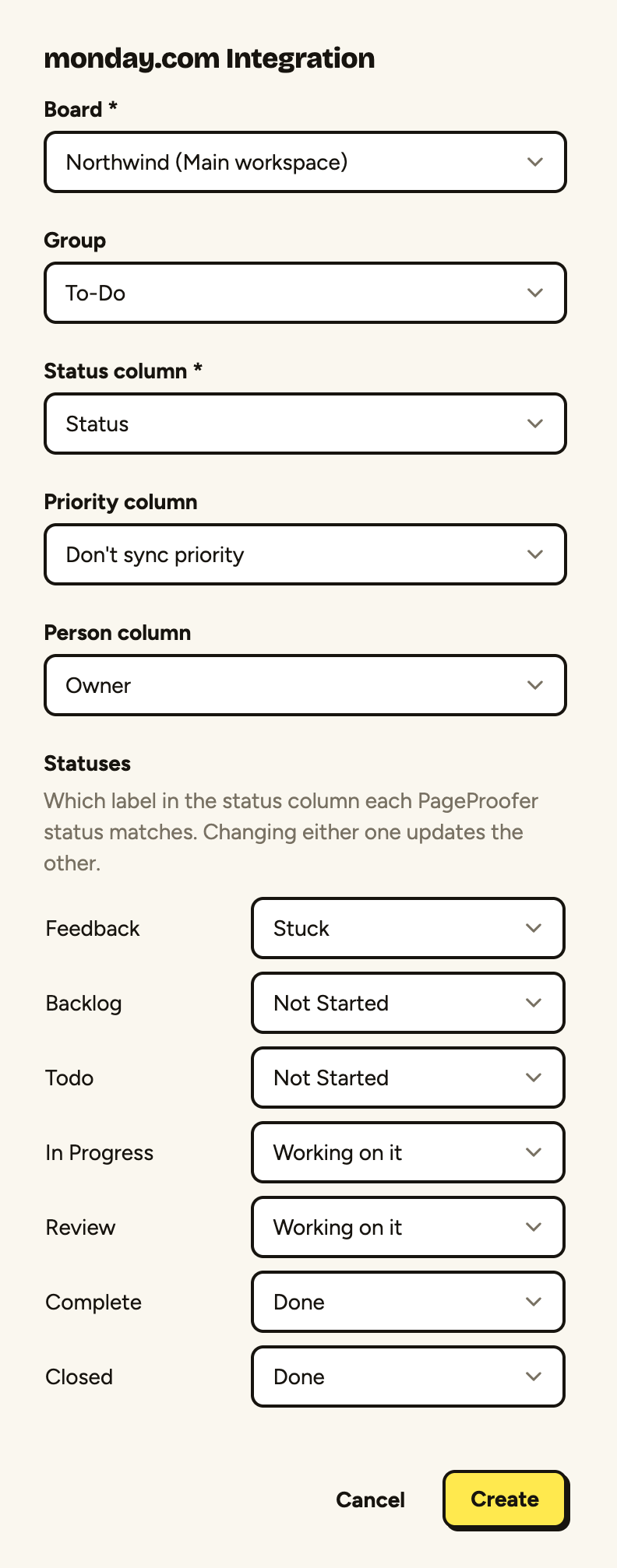
Choose the board the items should go to and, if you like, the group to add them to.
-
Choose which of the board’s columns hold the status, the priority and the person. Only the status column is needed. A board’s priority is usually a second status-style column, so pick it if your board has one.
-
Check which label each PageProofer status and priority matches. PageProofer suggests a match for each one from the column’s labels, so usually there’s nothing to change. Leave a priority blank to not set it.
-
Click ‘Create’. Your site is now connected to monday.com.
What stays in sync
- Updates: comments on the note are posted as updates on the item, and updates added in monday.com, including replies to the note’s details, are added to the note as comments.
- Status and priority changes follow the matches you set in step 5.
- Person: people are matched by email address, so adding someone to the person column assigns the same person in PageProofer, as long as they’re on the site. Clearing the column unassigns the note.
Deleting the item in monday.com keeps the note in PageProofer. It just isn’t linked to an item any more.
Images added to monday.com updates aren’t copied to PageProofer, only the update’s text.
If you change the board’s columns or labels, open the integration in PageProofer and save it again so the matches stay right.
Connect your own monday.com account
Teammates who use monday.com can connect their own account so the notes and updates they add show up under their name:
-
Click ‘My Settings’ in the PageProofer sidebar and choose the ‘Integrations’ tab.
-
Click ‘Add’ on monday.com and allow PageProofer access to your monday.com account.