← Back to Help How To
#Tags
Tag notes with a # so you can find and filter related feedback in seconds. Tags work like @mentions: type # in a note or comment and pick a tag from the list.
Adding tags
- Type
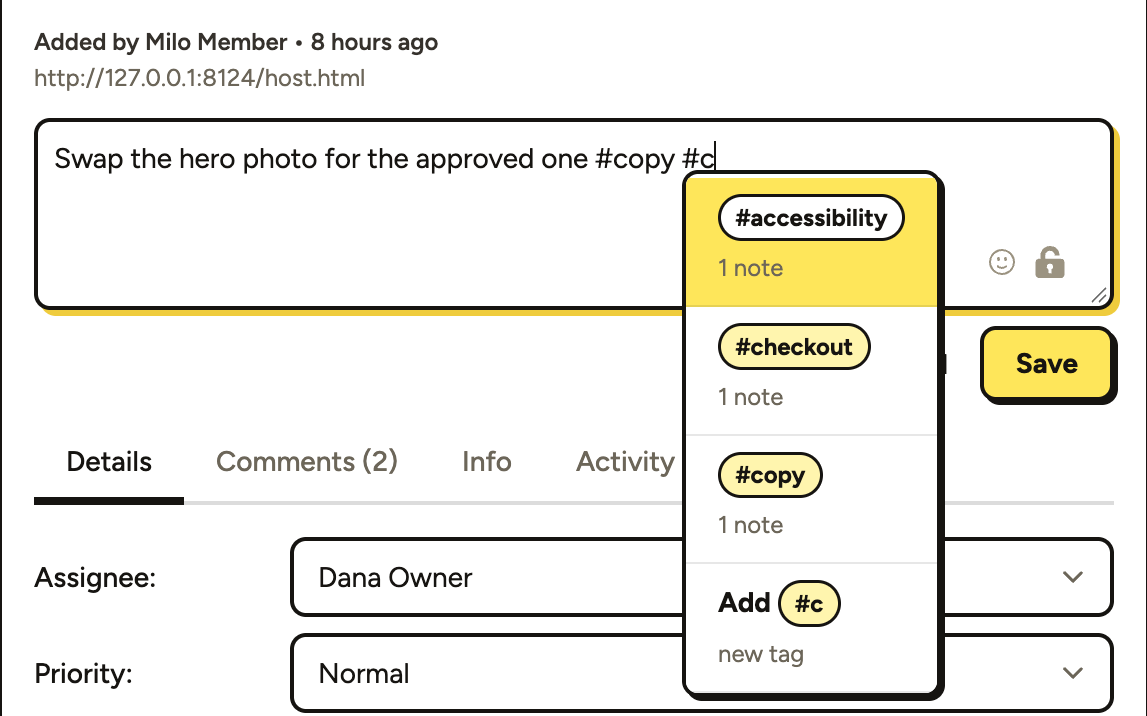
#and PageProofer lists the tags already used on the site, most used first, with how many notes use each one. - Keep typing to narrow the list, or choose Add #yourtag to create a new tag. A tag you’ve just added is offered again straight away, even before the note is saved.
- Tags can use letters, numbers, dashes and underscores, and aren’t case sensitive (
#Mobileand#mobileare the same tag). - Tags in a comment count for the note, so anyone in the conversation can tag it.
Colour codes like #FF5B3A and note numbers like #12 aren’t treated as tags, so you can still write them in feedback.
Finding tagged notes
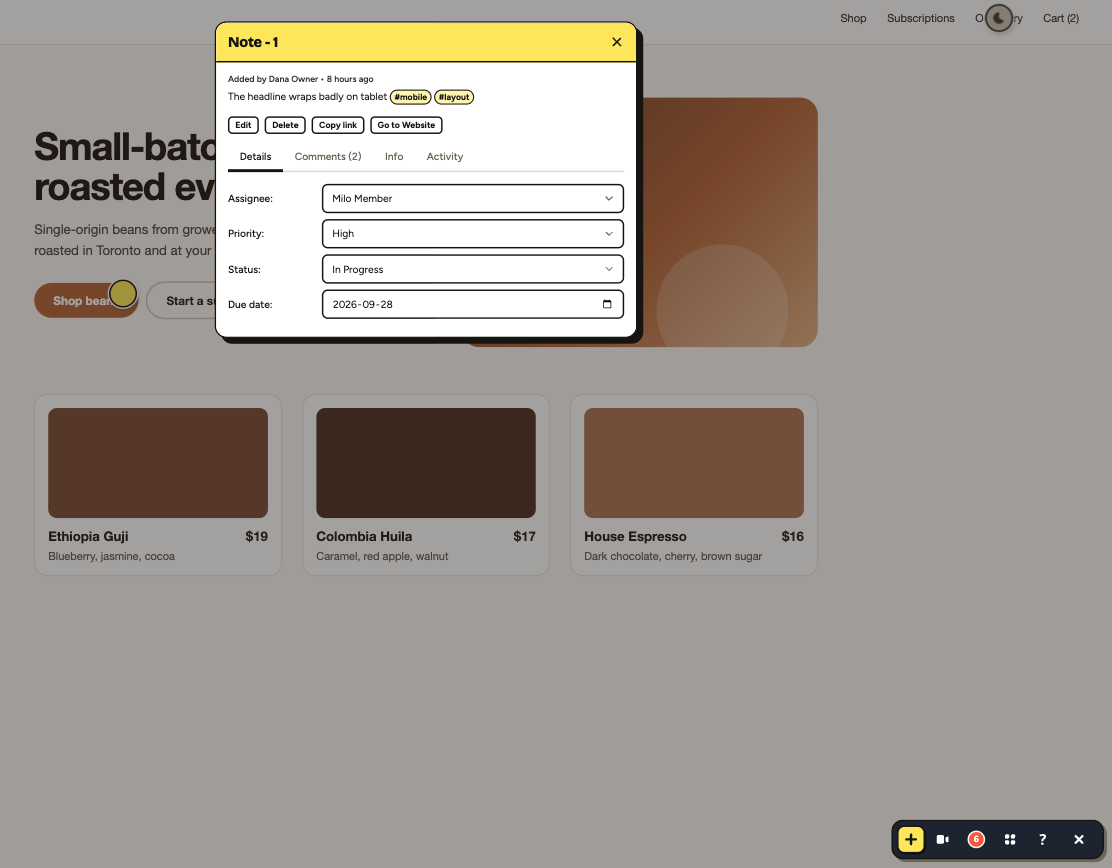
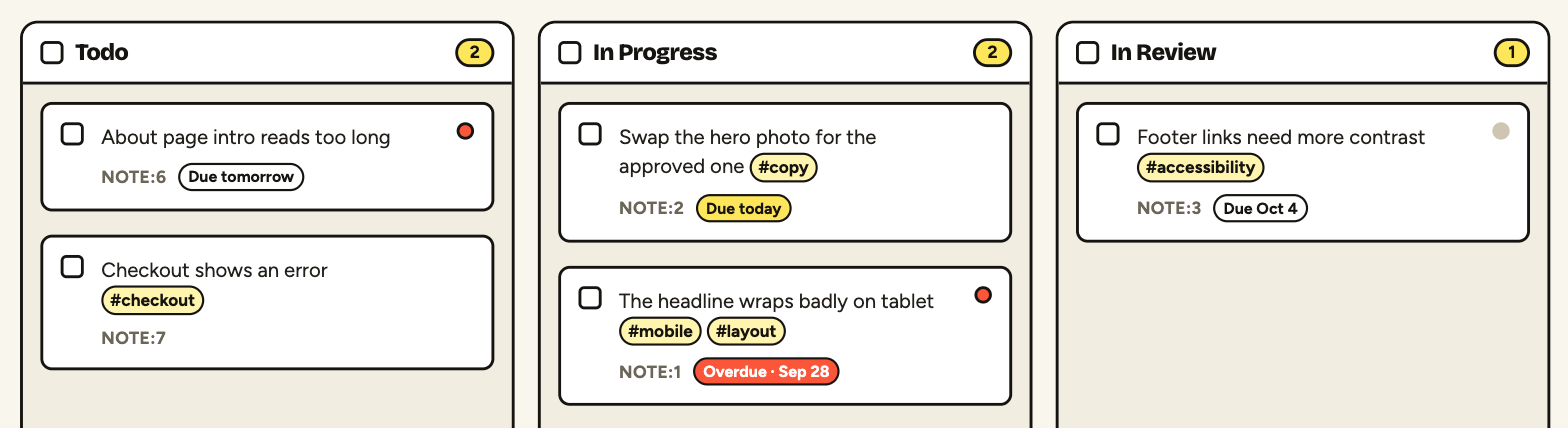
Tags show as yellow pills on the dashboard and in the notes list on your website.
In the dashboard search, type # to pick a tag.
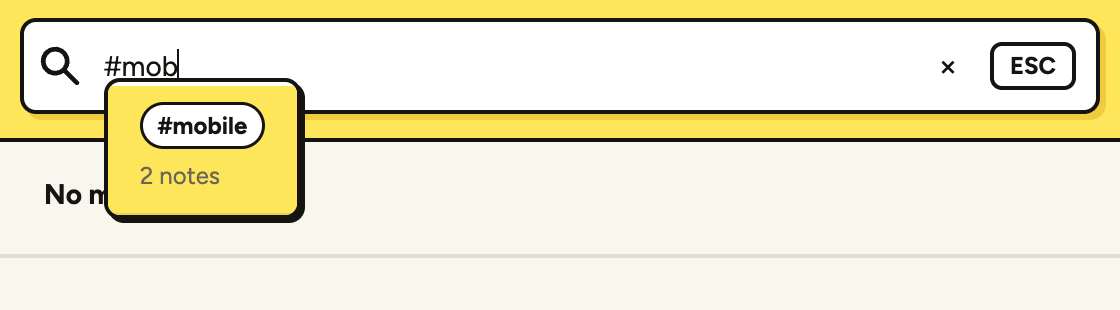
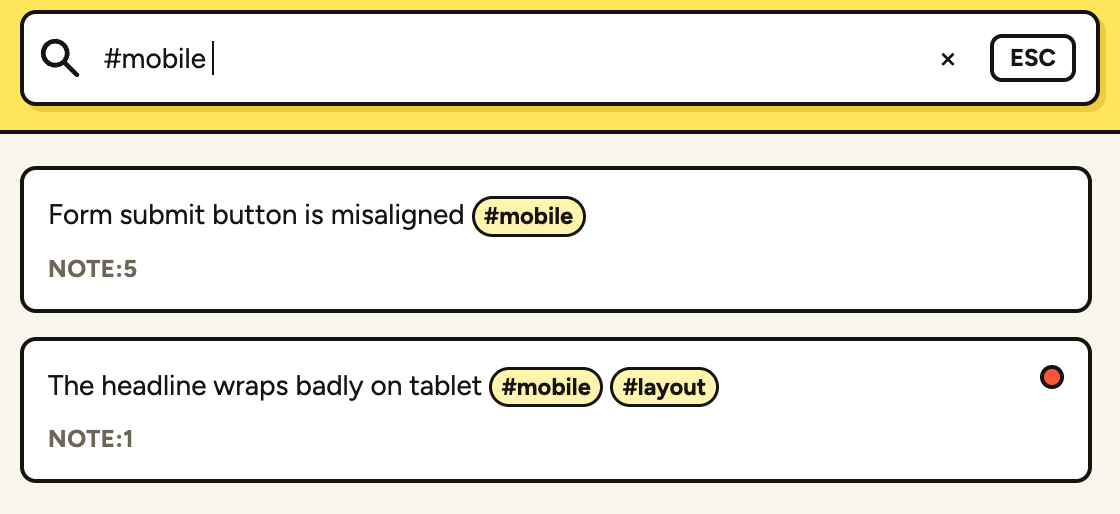
Searching #mobile shows every note tagged mobile. Add more tags to narrow it down (#mobile #checkout finds notes with both), or add words to search the text too (#mobile hero). Searching #12 on its own finds note number 12.
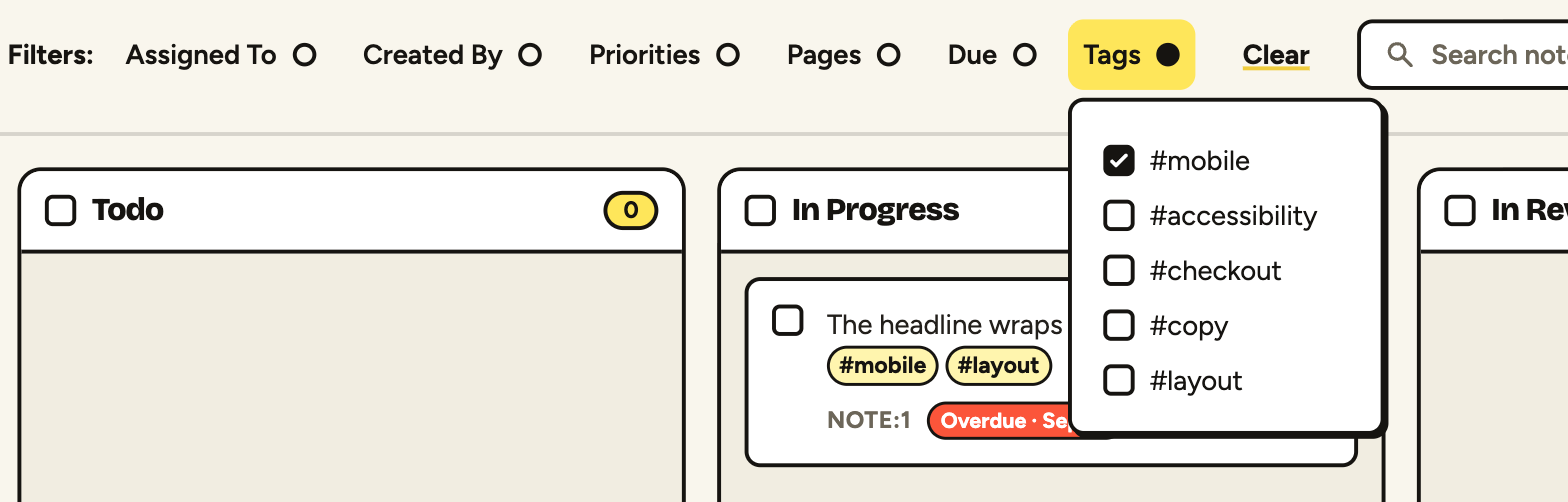
You can also use the Tags filter at the top of the dashboard. Tick one or more tags to show notes that have any of them.