
Why are some notes in Lost & Found?
Every note in PageProofer is pinned to an element on the page, like a heading, a button or an image (see the outline that follows your cursor). When PageProofer can’t find that element any more, it can’t show the note’s marker on the page. Instead the note goes to Lost & Found, so it doesn’t just disappear.
Nothing is deleted. The note, its comments, screenshots and history are all still there. It only needs to be pinned to an element again.
What causes notes to end up in Lost & Found?
The page changed after the note was left. PageProofer looks for the element using where it sat in the page and a snippet of its HTML. It can cope with small changes, but if the element is gone or has changed too much, the note can’t find its place. Common reasons:
- The element was removed. The section, button or image the note was about has been deleted or replaced. This often happens because the feedback was acted on.
- The page was restructured. A redesign, a new template or a page builder update moved the element into a different part of the page, or wrapped it in new containers.
- The content changed a lot. The text or markup is so different that PageProofer can’t be sure it’s the same element.
- The element isn’t on the page right now. Content that’s only added when you open a menu, tab, slider or popup, content that’s only there when you’re signed in, or content that only appears at another screen size. Elements that are on the page but hidden don’t count; those notes just hide their marker until the element is visible again.
PageProofer keeps checking the page while it’s open. If the element turns up again, for example after you open the menu or tab it’s in, the note leaves Lost & Found and its marker is back on the page.
Notes left as general feedback about the whole page aren’t pinned to an element, so they never end up in Lost & Found.
The toolbar icon
When a page has lost notes, a pin icon with a count appears in the PageProofer toolbar. The number is how many notes on this page can’t find their element. Click the icon to open Lost & Found, and click it again to close it.
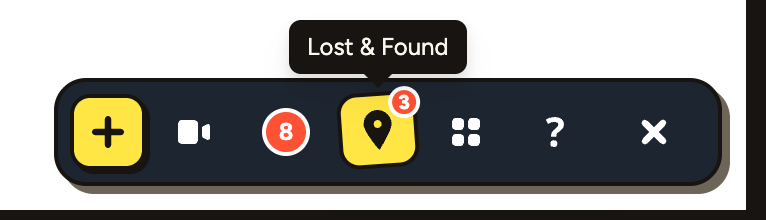
The notes list has a Lost & Found link with the same count at the top, so you can get there from the list too.
The icon and link only show while there’s something lost on the page. If you don’t see them, every note on the page is where it should be.
The Lost & Found panel
The panel lists each lost note with its number, the start of the note, and its status and priority.
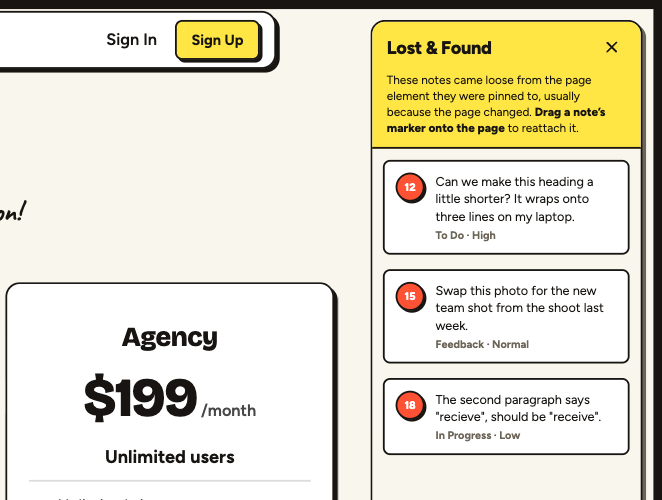
- Click a note to open it and read the whole thing, with its comments and screenshots.
- Drag a note’s marker (the numbered circle) onto the page to reattach it.
How to fix a lost note
- Open Lost & Found from the toolbar icon or the notes list.
- Find the element the note is about on the page. Scroll, or open the menu or tab it’s in, if you need to.
- Drag the note’s numbered marker out of the panel and onto that element. The element under your cursor is outlined so you can see where it will land.
- Let go. The note shows Reattaching… for a moment, then it’s pinned to the new element and its marker is back on the page.
When the last note is reattached, the panel says so and closes by itself.
A few things to know:
- Drop the marker on an element of the page. If you let go somewhere that isn’t part of the page, PageProofer asks you to try again.
- Press
Escwhile dragging to cancel. Dropping the marker back on the panel cancels too. - Reattaching is saved in the note’s history, so your team can see the note was moved.
- If the feedback no longer applies because the element is gone for good, you don’t need to reattach it. Open the note and complete or close it as usual.
Who can see Lost & Found?
Lost & Found is for the people on your team. Guests and clients leaving feedback without an account don’t see the icon or the panel.
Dragging uses a mouse or trackpad, so reattach notes from a desktop or laptop browser.