
What is the outline that follows my cursor?
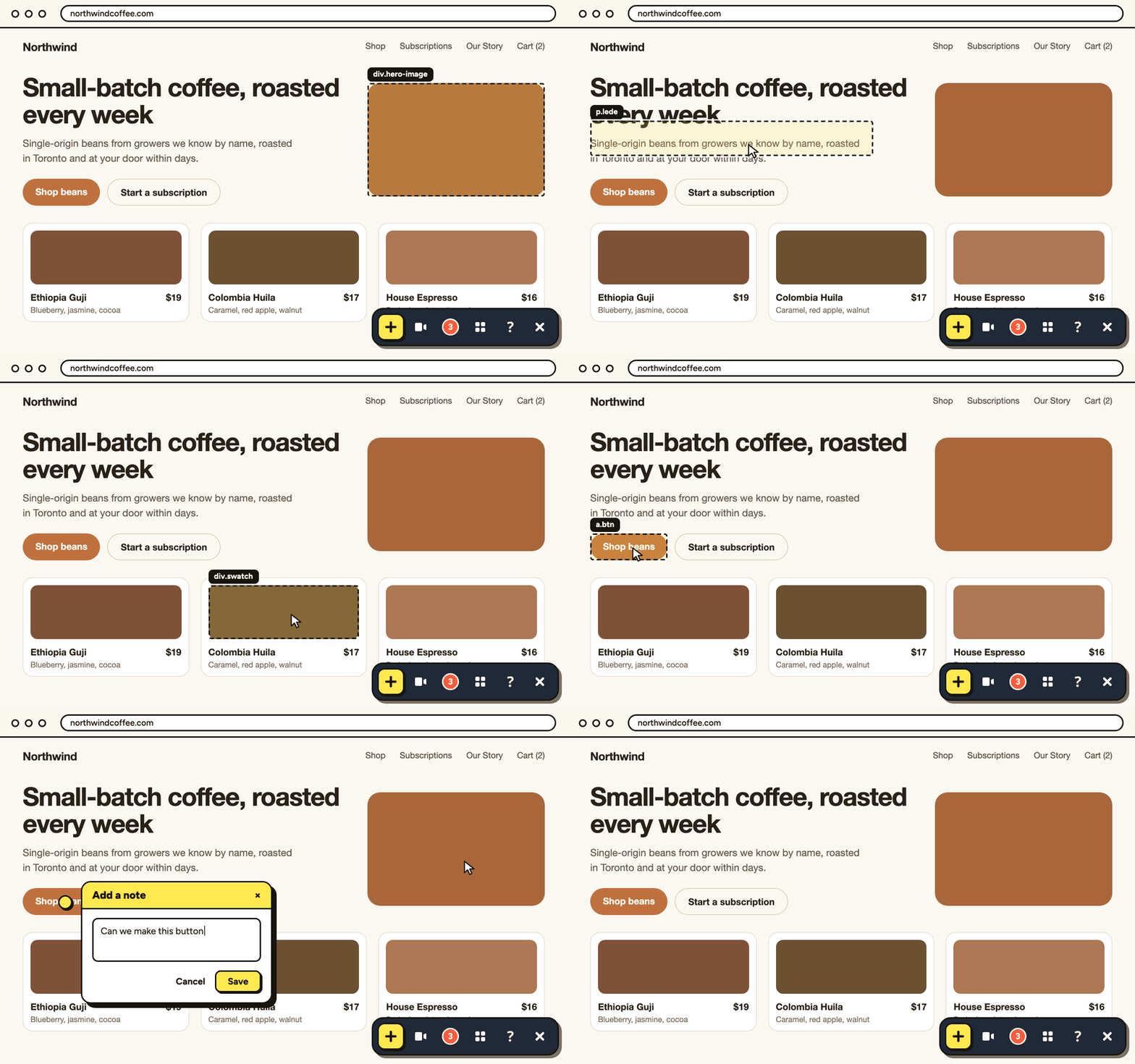
When PageProofer is open on a website, a dashed outline follows your cursor around the page. It shows the element your note will be pinned to if you click right there, like a heading, a button or an image.
Why it’s there
Every note in PageProofer is stuck to an element on the page, not just a spot on the screen. The outline takes the guesswork out of choosing that element: if the outline is around the button you mean, your note is pinned to that button.
That matters because websites change shape. When someone views the page on a different screen size, or the layout moves around a bit, the note stays with its element instead of floating over the wrong thing. If the element is removed or the page changes too much for PageProofer to find it, the note goes to Lost & Found so you can drag it back onto the page.
What the label means
The small black label above the outline is the element’s name, the way a developer would see it in the page’s code. It’s the type of element, followed by its id or its first class name if it has one:
h1is the page’s main heading.p.ledeis a paragraph with the classlede.a.btnis a link styled as a button.img#logois an image with the idlogo.
You don’t need to understand the label to leave feedback, it’s there for the developers on your team. If the outline is around the right thing, you’re good to go.
What gets saved with your note
When you click, PageProofer saves the element along with the note: where it is in the page, a short snippet of its HTML, and the exact spot inside it where you clicked. Developers can go straight to the right element, and AI coding agents use it to find the code behind the feedback.
Good to know
- The outline appears whenever PageProofer is open and you move your mouse. There’s nothing to turn on.
- It hides while you’re writing a note, so it won’t get in your way.
- Phones and tablets don’t have a cursor, so there’s no outline. Tap where you want to leave your note and it’s pinned to the element you tapped.
- The outline is only shown to you. It doesn’t change the website.
- If you’d rather leave feedback about the whole page instead of one element, press
N, or click + in the toolbar and choose Leave general feedback about this page. See Keyboard shortcuts.