
PageProofer is blocked by my website's Content Security Policy
Some websites send a Content Security Policy (CSP), a list of the places the page is allowed to load scripts, styles, fonts and frames from. Anything not on the list is blocked. If your website has a CSP, PageProofer needs to be added to it before it can load.
If you’ve added the embed code correctly but the PageProofer button still doesn’t appear, a CSP is a likely cause.
Check the browser console
- Open the page where PageProofer should appear.
- Open your browser’s developer tools. In Chrome and Edge press
F12, orCmd + Option + Ion a Mac. In Firefox it’s the same shortcut. In Safari, turn on Show features for web developers in Settings > Advanced first, then pressCmd + Option + I. - Choose the Console tab and reload the page.
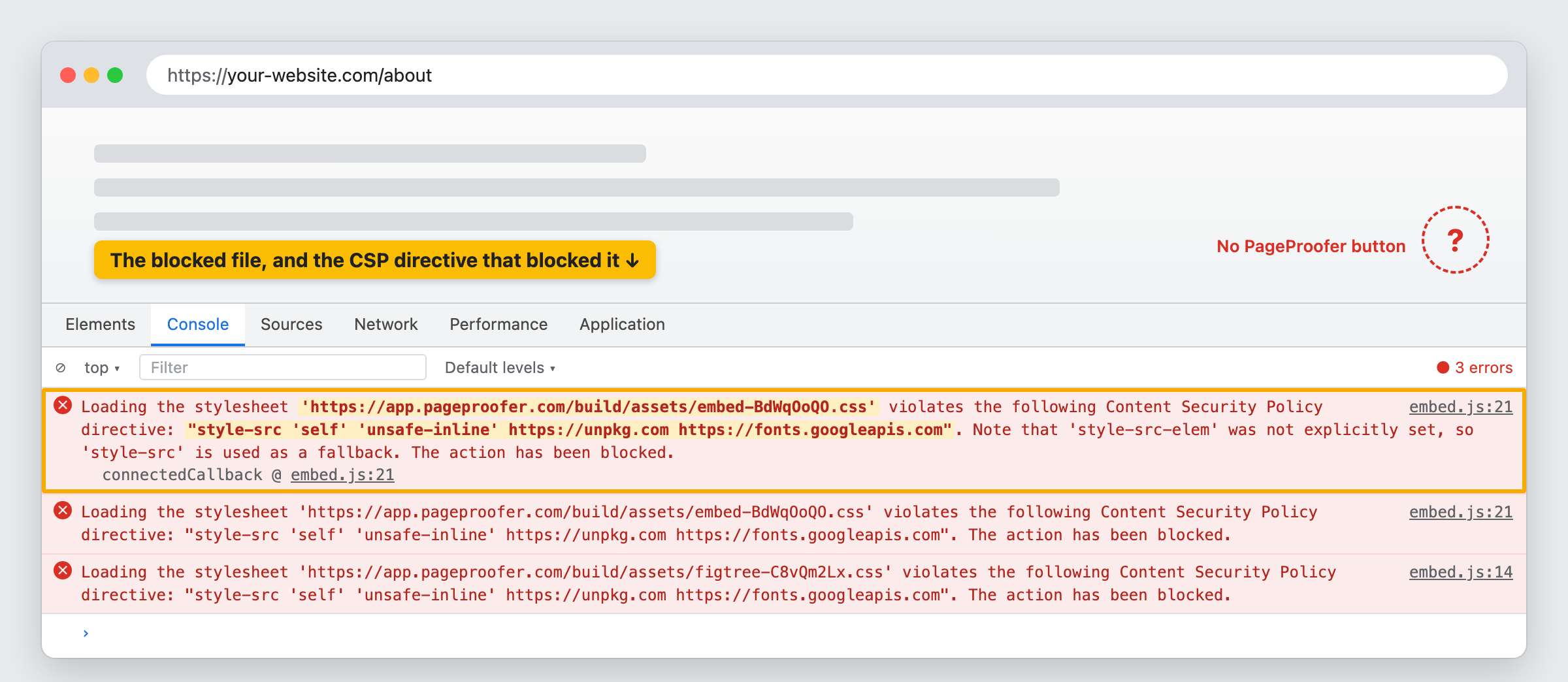
If a CSP is blocking PageProofer, you’ll see red errors like this:
Loading the stylesheet 'https://app.pageproofer.com/build/assets/embed-BdWqOoQO.css'
violates the following Content Security Policy directive: "style-src 'self'
'unsafe-inline' https://unpkg.com https://fonts.googleapis.com". Note that
'style-src-elem' was not explicitly set, so 'style-src' is used as a fallback.
The action has been blocked.
Each error names the file that was blocked and the directive that blocked it. Here, style-src doesn’t include app.pageproofer.com, so the PageProofer stylesheet is blocked.
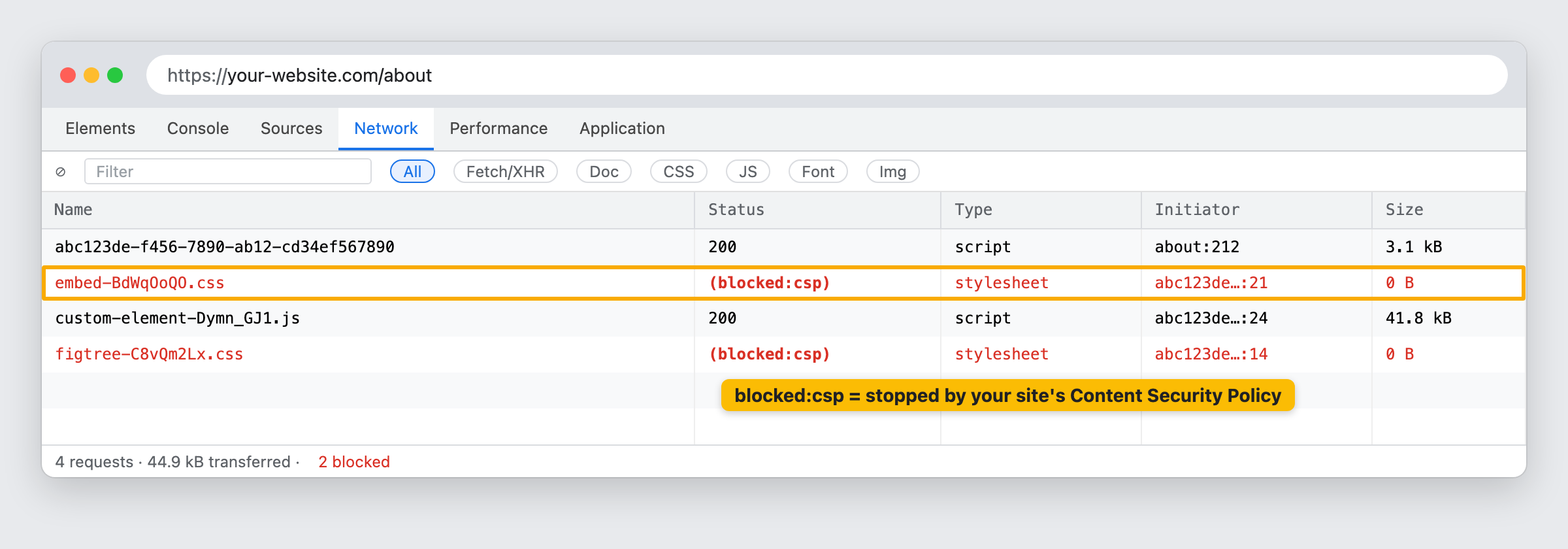
You can also see this on the Network tab. Blocked requests show (blocked:csp) in the Status column.
Update your Content Security Policy
You’ll need to add PageProofer’s domains to your website’s CSP. Fixing one directive often uncovers the next. Once the stylesheets load, the font or the frame may be blocked. Everything PageProofer loads comes from app.pageproofer.com, so it’s quickest to add everything PageProofer needs in one go:
| Directive | Add | What it’s for |
|---|---|---|
script-src | https://app.pageproofer.com | The embed code and the PageProofer script |
style-src | https://app.pageproofer.com 'unsafe-inline' | PageProofer’s stylesheets and your branding colours |
font-src | https://app.pageproofer.com | The font PageProofer uses |
frame-src | https://app.pageproofer.com | The PageProofer panel, which opens in a frame |
img-src | data: | Icons and drawings on screenshots |
Add these to what’s already in each directive. Don’t replace your existing values. For example, the style-src from the error above becomes:
style-src 'self' 'unsafe-inline' https://unpkg.com https://fonts.googleapis.com https://app.pageproofer.comIf your CSP has no frame-src, add the domain to child-src instead. If it has neither, add it to default-src. The same goes for script-src-elem and style-src-elem: if your policy sets them, add the domains there too.
If you’ve uploaded your own PageProofer button icon in your account’s branding settings, also add https://s3.amazonaws.com https://pageproofer-attachments.s3.amazonaws.com to img-src.
You don’t need to change connect-src. PageProofer sends notes, screenshots and comments from inside its own frame, not from your page.
Where to change your CSP
Your CSP is set either as a Content-Security-Policy response header or as a <meta http-equiv="Content-Security-Policy"> tag in your page’s HTML. Depending on how your website is built, you’ll find it in:
- your web server configuration (Nginx, Apache, IIS),
- your hosting or CDN settings (for example Netlify, Vercel or Cloudflare),
- a security plugin or module in your CMS,
- your framework’s security or middleware settings.
If you’re not sure, ask your developer or hosting provider. Send them the console errors and the table above.
Check it works
Reload the page with the Console tab open. If there are no more Content Security Policy errors mentioning pageproofer.com, the PageProofer button should appear.
If it still doesn’t appear, work through I don’t see the PageProofer icon on my website.
Screenshots and recordings
Taking screenshots and recording your screen needs your browser’s screen-capture permission. If your website also sends a Permissions-Policy header, make sure it allows display-capture, camera and microphone for your own site and for https://app.pageproofer.com, for example:
Permissions-Policy: display-capture=(self "https://app.pageproofer.com"), camera=(self "https://app.pageproofer.com"), microphone=(self "https://app.pageproofer.com")Most websites don’t send this header, so you can usually skip this step.
The PageProofer browser extension runs PageProofer inside the page too, so it’s blocked by the same policy. You’ll need to update the CSP to use either one.